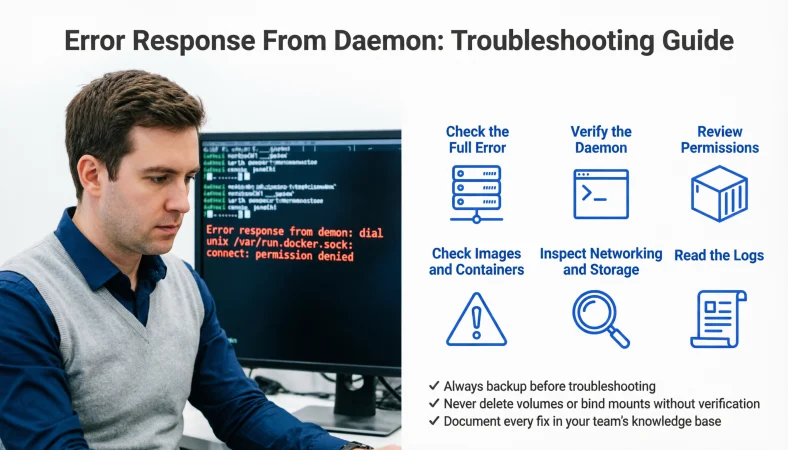
An error response from daemon usually means a background service, such as Docker’s daemon, received a request but could not complete it. The fix depends on the full error message and may involve checking service status, permissions, network settings, image names, or container configuration.
Top alternatives: Docker daemon error, daemon connection error, container runtime error, Docker API error, Docker troubleshooting guide.
Few things interrupt a coding session faster than a terminal message that simply says, “error response from daemon.” One minute, your Docker container is almost ready; the next, your workflow has hit a wall and your coffee is doing more work than your computer.
This message often appears when Docker or another daemon-based service cannot complete a request because of a configuration issue, missing resource, permission problem, or unavailable service.
The tricky part is that the phrase alone does not identify one universal cause. The words that follow it usually contain the real clue. Whether you’re running a container locally, deploying an application, troubleshooting a build, or helping a teammate in a work chat, understanding the message helps you respond with a clear next step instead of randomly restarting everything.
Let’s break down common error responses, practical troubleshooting approaches, and ways to explain the issue without sounding like your terminal personally betrayed you.
Common Error Response From Daemon Messages
1. “Check the full error message first.”
Example: Use this when the terminal shows a short daemon error without an obvious cause.
Meaning: The complete message often identifies the failing operation.
2. “Confirm which command triggered the error.”
Example: Use this when a container command fails during development.
Meaning: Knowing the command helps narrow down the problem.
3. “Read the specific error after the colon.”
Example: Use this when Docker returns a longer message after the main error phrase.
Meaning: The details often reveal whether the issue involves access, networking, or missing resources.
4. “Check whether the daemon is running.”
Example: Use this when Docker commands suddenly stop working.
Meaning: An unavailable background service may be preventing requests from completing.
5. “Verify the resource name.”
Example: Use this when a command refers to an image, container, or volume.
Meaning: A typo or incorrect name can cause the request to fail.
6. “Check your permissions before retrying.”
Example: Use this when the error mentions access being denied.
Meaning: The current account may lack the required privileges.
7. “Inspect the latest service logs.”
Example: Use this when the same daemon error keeps returning.
Meaning: Logs may show the underlying failure.
8. “Confirm the requested port is available.”
Example: Use this when a container fails to start with a port-binding error.
Meaning: Another process may already be using that port.
9. “Check disk space and available resources.”
Example: Use this when builds or containers fail unexpectedly.
Meaning: Low storage or memory can interfere with daemon operations.
10. “Verify the configuration before changing it.”
Example: Use this when the error starts after a deployment update.
Meaning: Configuration changes may have introduced the problem.
11. “Try one controlled retry after fixing the cause.”
Example: Use this when a temporary network issue has been resolved.
Meaning: A targeted retry helps confirm whether the fix worked.
12. “Keep the complete error for reference.”
Example: Use this when asking a teammate for troubleshooting help.
Meaning: Accurate details make diagnosis faster.
Error Response From Daemon When Docker Is Not Running
1. “Check whether Docker Desktop is open.”
Example: Use this on a computer where Docker Desktop manages the daemon.
Meaning: The desktop application may not be running.
2. “Verify the Docker service status.”
Example: Use this on a Linux machine that runs Docker as a system service.
Meaning: Service status helps establish whether the daemon is active.
3. “Start the service if it is stopped.”
Example: Use this when an authorized administrator confirms Docker is inactive.
Meaning: Starting the service may restore daemon access.
4. “Check the daemon logs for startup failures.”
Example: Use this when Docker starts and then immediately stops.
Meaning: Startup logs can reveal configuration or dependency problems.
5. “Confirm the Docker socket is available.”
Example: Use this when the client cannot connect to the local daemon.
Meaning: The socket may be missing, inaccessible, or incorrectly configured.
6. “Verify the active Docker context.”
Example: Use this when commands target a remote endpoint instead of the local machine.
Meaning: The client may be connecting to the wrong Docker environment.
7. “Check the configured daemon endpoint.”
Example: Use this when DOCKER_HOST or another endpoint setting is in use.
Meaning: An incorrect endpoint can direct requests to an unavailable service.
8. “Restart Docker only after checking the cause.”
Example: Use this when a temporary daemon failure appears likely.
Meaning: A controlled restart may help, but should not replace diagnosis.
9. “Check whether the machine recently rebooted.”
Example: Use this when Docker stopped working after a system update.
Meaning: The service may not have started successfully after reboot.
10. “Verify that required dependencies are available.”
Example: Use this when the daemon fails during startup.
Meaning: Missing dependencies may prevent normal operation.
11. “Check whether a remote Docker host is reachable.”
Example: Use this when the client connects to a server on another machine.
Meaning: The remote system or network may be unavailable.
12. “Confirm the daemon is healthy before retrying commands.”
Example: Use this after resolving a startup failure.
Meaning: A working service is necessary for successful requests.
Error Response From Daemon Caused by Permission Issues
1. “Check which user is running the command.”
Example: Use this when a command works for one account but fails for another.
Meaning: The accounts may have different permissions.
2. “Verify access to the Docker socket.”
Example: Use this when a Linux client cannot access /var/run/docker.sock.
Meaning: Socket permissions may be blocking the connection.
3. “Use only approved privilege escalation.”
Example: Use this when an administrator recommends running a command with elevated permissions.
Meaning: Elevated access should follow your system’s security rules.
4. “Check whether your account has the required group membership.”
Example: Use this when your team uses a Docker group for local access.
Meaning: The account may not have the expected authorization.
5. “Refresh your session after permission changes.”
Example: Use this after an administrator updates your group membership.
Meaning: Existing sessions may not recognize the new permissions.
6. “Review file ownership before changing it.”
Example: Use this when a mounted directory cannot be accessed by a container.
Meaning: Ownership may explain the access failure.
7. “Avoid making the socket world-writable.”
Example: Use this when someone suggests a quick permission workaround.
Meaning: Broad access can create serious security risks.
8. “Check access to mounted host directories.”
Example: Use this when a container cannot read a project folder.
Meaning: Host-side permissions may restrict the container.
9. “Confirm the process has permission to bind the port.”
Example: Use this when a service fails to listen on a protected port.
Meaning: Operating-system restrictions may prevent the bind operation.
10. “Review security policies and access controls.”
Example: Use this when standard permissions appear correct but access is still denied.
Meaning: Additional controls may be blocking the request.
11. “Ask an administrator to review restricted environments.”
Example: Use this when working on a managed workstation or server.
Meaning: Administrative policies may require authorized changes.
12. “Apply the narrowest permission change that fixes the issue.”
Example: Use this when a directory or service needs additional access.
Meaning: Minimal permissions reduce unnecessary security exposure.
Error Response From Daemon When an Image Is Missing
1. “Check the image name for typos.”
Example: Use this when Docker cannot find the requested image.
Meaning: A misspelled repository name may be the problem.
2. “Verify the image tag.”
Example: Use this when a command requests a specific version of an image.
Meaning: The requested tag may not exist.
3. “Pull the image if it is available from the registry.”
Example: Use this when the image is not present locally.
Meaning: Downloading the image may make it available to the daemon.
4. “Confirm the registry hostname.”
Example: Use this when an image belongs to a private or custom registry.
Meaning: The request may be pointing to the wrong registry.
5. “Check whether the repository is private.”
Example: Use this when an image pull fails despite the correct name.
Meaning: Authentication may be required.
6. “Verify that the image supports your platform.”
Example: Use this when pulling or running an image on a different CPU architecture.
Meaning: The registry may not provide a compatible image variant.
7. “Confirm the image was built successfully.”
Example: Use this when running an image created by your own project.
Meaning: A failed build may explain why the image is unavailable.
8. “List available local images.”
Example: Use this when you are unsure which tags are installed.
Meaning: The local image list helps confirm what is present.
9. “Check whether the tag was renamed.”
Example: Use this when a deployment pipeline recently changed image naming.
Meaning: The command may reference an outdated tag.
10. “Review the registry’s availability.”
Example: Use this when multiple image pulls fail at once.
Meaning: A registry outage or connectivity issue may be involved.
11. “Check the image pull policy in your deployment.”
Example: Use this when an orchestrator repeatedly tries to fetch an image.
Meaning: Pull behavior may affect whether the image can be started.
12. “Use the exact image reference from your build or release.”
Example: Use this when a team deploys images with versioned tags.
Meaning: Consistent naming reduces accidental mismatches.
Error Response From Daemon When a Container Will Not Start
1. “Check whether the container already exists.”
Example: Use this when a create command fails because a name is taken.
Meaning: An existing container may be using the requested name.
2. “Inspect the container’s current status.”
Example: Use this when a container exits immediately after starting.
Meaning: Its state can point to the next troubleshooting step.
3. “Review the container logs.”
Example: Use this when the service starts but then crashes.
Meaning: Application output may explain the failure.
4. “Verify the startup command.”
Example: Use this when a container exits with an unexpected status.
Meaning: An incorrect entry point or command may prevent startup.
5. “Check the required environment variables.”
Example: Use this when an application expects settings at launch.
Meaning: Missing or incorrect values may cause the application to fail.
6. “Confirm that required files exist inside the image.”
Example: Use this when the startup command refers to a missing script.
Meaning: The image may not contain the expected application files.
7. “Inspect health-check failures.”
Example: Use this when a container keeps being marked unhealthy.
Meaning: The health check may reveal an application or configuration issue.
8. “Check for conflicting container names.”
Example: Use this when recreating a container after a failed deployment.
Meaning: The old container may still occupy the name.
9. “Verify the restart policy.”
Example: Use this when a container repeatedly restarts.
Meaning: The policy can affect what happens after a failure.
10. “Confirm required services are ready.”
Example: Use this when an application depends on a database or cache.
Meaning: A dependency may be unavailable when the container starts.
11. “Inspect the container’s exit code.”
Example: Use this when logs alone do not explain why a process stopped.
Meaning: The exit status provides another useful diagnostic clue.
12. “Recreate the container only after preserving needed data.”
Example: Use this when configuration changes require a fresh container.
Meaning: Careful recreation can prevent accidental data loss.
Error Response From Daemon Caused by Ports and Networking
1. “Check whether the requested port is already in use.”
Example: Use this when Docker reports a port-binding conflict.
Meaning: Another process may already occupy the host port.
2. “Verify the host-to-container port mapping.”
Example: Use this when an application cannot be reached from your browser.
Meaning: The published port may not match the intended service port.
3. “Confirm the application listens on the right interface.”
Example: Use this when the container runs but external requests fail.
Meaning: A service listening only on localhost inside the container may not be reachable as expected.
4. “Check the container network configuration.”
Example: Use this when two containers cannot communicate.
Meaning: They may not share a suitable network.
5. “Verify DNS resolution.”
Example: Use this when a container cannot reach a service by hostname.
Meaning: Name resolution may be failing.
6. “Test connectivity to the required endpoint.”
Example: Use this when an application depends on an external API.
Meaning: The endpoint or network path may be unavailable.
7. “Check firewall rules and network policies.”
Example: Use this when connections time out despite correct application settings.
Meaning: Traffic may be blocked between systems.
8. “Confirm the remote host is reachable.”
Example: Use this when Docker targets a daemon on another machine.
Meaning: The remote server or network route may be unavailable.
9. “Inspect proxy settings.”
Example: Use this when image pulls or API requests fail behind a corporate proxy.
Meaning: Incorrect proxy configuration may interrupt connectivity.
10. “Check whether the VPN changes network access.”
Example: Use this when the error appears after connecting to a VPN.
Meaning: The VPN may change routes or access permissions.
11. “Review network address conflicts.”
Example: Use this when a container network overlaps with an existing network.
Meaning: Conflicting address ranges can cause connectivity problems.
12. “Retest the connection after each network change.”
Example: Use this when troubleshooting several possible network causes.
Meaning: Controlled testing helps identify the effective fix.
Error Response From Daemon Caused by Storage and Volumes
1. “Check how much disk space remains.”
Example: Use this when a build or image pull fails unexpectedly.
Meaning: Insufficient storage may prevent the operation from completing.
2. “Inspect Docker’s storage usage.”
Example: Use this when many images and stopped containers have accumulated.
Meaning: Stored resources may be consuming significant disk space.
3. “Verify the volume name.”
Example: Use this when a container cannot mount the expected volume.
Meaning: The requested volume may not exist or may be misnamed.
4. “Check the host path used by a bind mount.”
Example: Use this when a container reports that a mounted directory is missing.
Meaning: The source path may be incorrect or unavailable.
5. “Confirm that the filesystem is writable.”
Example: Use this when an application cannot save files to a mounted directory.
Meaning: Read-only settings or permissions may block writes.
6. “Inspect inode availability on Linux.”
Example: Use this when the disk appears to have space but file creation fails.
Meaning: The filesystem may have run out of inodes.
7. “Avoid deleting volumes without checking their contents.”
Example: Use this when considering cleanup commands to free storage.
Meaning: Volumes may contain databases or other persistent data.
8. “Check whether the storage mount is healthy.”
Example: Use this when Docker uses a separate disk or mounted filesystem.
Meaning: A missing or unhealthy mount can disrupt storage operations.
9. “Review filesystem errors in the system logs.”
Example: Use this when storage failures continue after freeing space.
Meaning: The underlying filesystem may need attention.
10. “Confirm that backup data is available before cleanup.”
Example: Use this before removing resources from a production server.
Meaning: Protect important data against accidental loss.
11. “Use targeted cleanup instead of deleting everything.”
Example: Use this when unused images are consuming disk space.
Meaning: Selective cleanup reduces the risk of removing needed resources.
12. “Monitor storage after the fix.”
Example: Use this when the daemon error was caused by a full disk.
Meaning: Monitoring can help catch recurring storage pressure.
Error Response From Daemon During Docker Builds
1. “Check the Dockerfile for syntax errors.”
Example: Use this when a build stops at a specific instruction.
Meaning: Invalid syntax may prevent the build from continuing.
2. “Review the failed build step.”
Example: Use this when the build output contains many successful steps before the error.
Meaning: The failing instruction is a useful starting point.
3. “Confirm that copied files exist in the build context.”
Example: Use this when a COPY instruction cannot locate a file.
Meaning: The file may be missing or excluded from the context.
4. “Inspect the .dockerignore file.”
Example: Use this when required files are absent during a build.
Meaning: The ignore rules may exclude files the build needs.
5. “Check whether the base image is available.”
Example: Use this when a build fails while retrieving its starting image.
Meaning: The image name, tag, registry, or network may be the issue.
6. “Verify package repository access.”
Example: Use this when a build fails while installing dependencies.
Meaning: Network access or repository availability may be preventing installation.
7. “Review build arguments and environment variables.”
Example: Use this when a build depends on configurable values.
Meaning: Missing inputs may cause a build step to fail.
8. “Check whether the build has enough memory and storage.”
Example: Use this when large builds terminate unexpectedly.
Meaning: Resource limits can interrupt the build process.
9. “Use build logs to identify the first meaningful failure.”
Example: Use this when the final error message is vague.
Meaning: Earlier output may reveal the root cause.
10. “Test the failing instruction in isolation when practical.”
Example: Use this when one dependency installation step consistently fails.
Meaning: A smaller test can narrow down the issue.
11. “Review cache settings before forcing a clean build.”
Example: Use this when an outdated cached layer may be involved.
Meaning: Cache behavior can affect the result, but clearing it should be deliberate.
12. “Rebuild after correcting the underlying issue.”
Example: Use this when the Dockerfile or build context has been fixed.
Meaning: A fresh build confirms whether the change solved the problem.
Error Response From Daemon Caused by API or Version Mismatch
1. “Check the Docker client version.”
Example: Use this when commands behave differently across machines.
Meaning: Different client versions may affect compatibility.
2. “Check the daemon version.”
Example: Use this when a client cannot complete a daemon request.
Meaning: The server version helps clarify compatibility issues.
3. “Review the exact API error details.”
Example: Use this when the message mentions an unsupported API version.
Meaning: The error may identify the incompatible request.
4. “Confirm that the client targets the expected daemon.”
Example: Use this when several Docker environments are configured.
Meaning: The selected endpoint may use a different version or configuration.
5. “Check the SDK or library version.”
Example: Use this when an application makes Docker API calls directly.
Meaning: An outdated library may send unsupported requests.
6. “Review the API endpoint used by the application.”
Example: Use this when custom code communicates with Docker.
Meaning: The endpoint or request format may not match the daemon.
7. “Compare the working and failing environments.”
Example: Use this when the same project runs on one machine but not another.
Meaning: Version or configuration differences may explain the behavior.
8. “Check release notes before upgrading.”
Example: Use this when considering a Docker client or daemon update.
Meaning: Changes may affect compatibility and behavior.
9. “Avoid mixing unsupported versions in production.”
Example: Use this when maintaining a fleet of container hosts.
Meaning: Consistent, supported versions simplify troubleshooting.
10. “Verify the expected request format.”
Example: Use this when an API call fails validation.
Meaning: Incorrect parameters or request structure may be responsible.
11. “Test compatibility in a nonproduction environment.”
Example: Use this before changing a shared container platform.
Meaning: Testing reduces the risk of introducing a service disruption.
12. “Document the compatible version combination.”
Example: Use this when several developers rely on the same container setup.
Meaning: Shared version guidance helps prevent repeat failures.
Error Response From Daemon Caused by Resource Limits
1. “Check available system memory.”
Example: Use this when containers stop during memory-intensive tasks.
Meaning: The host may be under memory pressure.
2. “Inspect container memory limits.”
Example: Use this when a service repeatedly runs out of memory.
Meaning: The configured limit may be too restrictive for the workload.
3. “Review CPU limits and reservations.”
Example: Use this when a container performs poorly under load.
Meaning: Resource constraints may affect application behavior.
4. “Check whether the process was killed for memory usage.”
Example: Use this when a container exits unexpectedly.
Meaning: An out-of-memory event may explain the shutdown.
5. “Monitor disk I/O during the failing operation.”
Example: Use this when builds or database tasks become unresponsive.
Meaning: Storage bottlenecks may be slowing the workload.
6. “Confirm that the host has enough capacity.”
Example: Use this when launching several containers at once.
Meaning: Combined resource demands may exceed available capacity.
7. “Review resource usage before increasing limits.”
Example: Use this when considering a larger memory allocation.
Meaning: Measurements help distinguish an undersized limit from an application leak.
8. “Check for runaway processes.”
Example: Use this when resource usage rises continuously.
Meaning: A process may be consuming more resources than expected.
9. “Inspect the workload’s peak demand.”
Example: Use this when failures occur only during heavy traffic.
Meaning: Capacity planning should account for peak usage.
10. “Reduce unnecessary background workloads.”
Example: Use this when a development machine struggles to run containers.
Meaning: Freeing resources may improve stability.
11. “Set resource limits appropriate to the application.”
Example: Use this when configuring a new production service.
Meaning: Balanced limits help protect both the workload and the host.
12. “Monitor resource usage after making changes.”
Example: Use this when a revised memory or CPU setting appears to fix the error.
Meaning: Monitoring helps confirm whether the change is sustainable.
Error Response From Daemon When Registry Authentication Fails
1. “Check whether you are logged in to the registry.”
Example: Use this when a private image pull returns an authorization error.
Meaning: The client may not have an active registry login.
2. “Verify the registry username and account.”
Example: Use this when credentials were recently changed.
Meaning: The login may be using the wrong account.
3. “Confirm that the account can access the repository.”
Example: Use this when login succeeds but the image pull fails.
Meaning: Authentication does not automatically guarantee repository permission.
4. “Check whether the access token has expired.”
Example: Use this when registry access suddenly stops working.
Meaning: The stored token may no longer be valid.
5. “Review the required permissions for the token.”
Example: Use this when a deployment token cannot pull images.
Meaning: The token may lack the necessary read access.
6. “Confirm the exact registry address.”
Example: Use this when the same image name exists in different registries.
Meaning: The client may be authenticating with the wrong service.
7. “Check whether single sign-on is required.”
Example: Use this when working with a company-managed registry.
Meaning: The registry may require an organization-specific login process.
8. “Review secret configuration in the deployment pipeline.”
Example: Use this when automated builds fail to authenticate.
Meaning: The pipeline may be missing or misreading its credentials.
9. “Avoid putting passwords directly into scripts.”
Example: Use this when updating a deployment command.
Meaning: Safer secret handling reduces the risk of credential exposure.
10. “Check registry rate limits.”
Example: Use this when repeated pulls fail after many requests.
Meaning: The registry may be limiting requests from your account or network.
11. “Refresh credentials through the approved process.”
Example: Use this when an administrator confirms that credentials need updating.
Meaning: A valid credential refresh can restore access.
12. “Retry the pull after confirming access.”
Example: Use this when the registry permissions have been corrected.
Meaning: The retry checks whether the authentication issue is resolved.
Error Response From Daemon When Using Docker Compose
1. “Validate the Compose configuration.”
Example: Use this when a multi-container application fails before starting.
Meaning: The configuration may contain invalid settings.
2. “Check the service name in your command.”
Example: Use this when a Compose command targets a service that does not exist.
Meaning: The requested service may be named incorrectly.
3. “Confirm that required environment variables are set.”
Example: Use this when a Compose file references variables from an environment file.
Meaning: Missing values may lead to incorrect configuration.
4. “Review the image or build setting for each service.”
Example: Use this when one service cannot find its image.
Meaning: The service may reference an unavailable image or invalid build context.
5. “Check whether required services are healthy.”
Example: Use this when an application depends on a database container.
Meaning: A dependency may not be ready for use.
6. “Inspect the port mappings for conflicts.”
Example: Use this when Compose fails to start one service.
Meaning: Two services may be trying to publish the same host port.
7. “Verify the volume definitions.”
Example: Use this when a service cannot mount its expected data directory.
Meaning: The volume name or source path may be wrong.
8. “Check the active Compose project.”
Example: Use this when commands seem to affect the wrong group of containers.
Meaning: The current directory or project name may select a different environment.
9. “Review the service logs individually.”
Example: Use this when one container fails while the others start.
Meaning: The failing service’s logs may reveal the specific cause.
10. “Confirm the required network is defined.”
Example: Use this when services cannot communicate after startup.
Meaning: A missing or incorrectly configured network may be responsible.
11. “Check the Compose plugin version.”
Example: Use this when a command is unsupported on one workstation.
Meaning: Different plugin versions may offer different behavior.
12. “Recreate services only after reviewing persistent data.”
Example: Use this when configuration changes require container recreation.
Meaning: Protect important volumes and databases before making changes.
Error Response From Daemon: Logging and Debugging Tips
1. “Capture the complete terminal output.”
Example: Use this when a short error summary leaves out useful details.
Meaning: Full output can preserve the context needed for diagnosis.
2. “Check daemon logs around the failure time.”
Example: Use this when the client message does not explain the cause.
Meaning: The daemon may record a more specific failure.
3. “Compare timestamps across related services.”
Example: Use this when several containers fail during the same operation.
Meaning: Matching timestamps can help establish the sequence of events.
4. “Reproduce the issue with a minimal command.”
Example: Use this when a complex deployment command has many options.
Meaning: A smaller test can isolate the failing component.
5. “Change one variable at a time.”
Example: Use this when testing configuration changes.
Meaning: Controlled experiments make it easier to identify the cause.
6. “Check system logs as well as application logs.”
Example: Use this when the error may involve storage, networking, or service startup.
Meaning: The operating system may record failures outside the application.
7. “Inspect recent configuration changes.”
Example: Use this when the error started after a release.
Meaning: A recent change may be connected to the failure.
8. “Record the command, environment, and expected result.”
Example: Use this when preparing a reproducible bug report.
Meaning: Clear context helps another person investigate the same issue.
9. “Redact passwords and access tokens before sharing logs.”
Example: Use this when posting error output in a team channel.
Meaning: Sensitive credentials should not be exposed.
10. “Use debug logging when ordinary logs are insufficient.”
Example: Use this when authorized diagnostic steps have not identified the issue.
Meaning: Additional detail may reveal the failing operation.
11. “Confirm whether the problem is repeatable.”
Example: Use this when a single command fails once and then succeeds.
Meaning: Reproducibility helps distinguish intermittent issues from consistent faults.
12. “Save the results of each troubleshooting step.”
Example: Use this when investigating a complicated daemon failure.
Meaning: A record prevents repeated tests and helps communicate progress.
Error Response From Daemon in Professional Troubleshooting Messages
1. “The daemon returned an error while processing the request.”
Example: Use this in a concise incident update.
Meaning: It communicates the issue without assuming the cause.
2. “I’m checking the full error details now.”
Example: Use this when a teammate asks why a deployment failed.
Meaning: It signals that investigation is underway.
3. “The failure appears related to the container configuration.”
Example: Use this when initial evidence points to a configuration issue.
Meaning: It shares a preliminary finding without claiming certainty.
4. “Could you share the complete error output?”
Example: Use this when someone reports only the first line of the error.
Meaning: It requests the evidence needed for diagnosis.
5. “The service is unavailable, so the request could not complete.”
Example: Use this when service checks confirm that the daemon is down.
Meaning: It explains the immediate blocker.
6. “I’m verifying permissions before changing access settings.”
Example: Use this when a command returns a permission-denied message.
Meaning: It shows that access changes will be handled carefully.
7. “The issue is reproducible with the current configuration.”
Example: Use this when the same command fails consistently.
Meaning: It reports a repeatable result for the investigation.
8. “We have identified a likely cause and are validating the fix.”
Example: Use this when testing a proposed solution.
Meaning: It separates a suspected cause from a confirmed resolution.
9. “The initial retry did not resolve the issue.”
Example: Use this when a temporary retry fails to help.
Meaning: It records the result without repeating ineffective actions.
10. “Please avoid restarting the production service until we confirm the impact.”
Example: Use this when a restart could interrupt active workloads.
Meaning: It encourages a controlled response in production.
11. “The error has cleared after the configuration was corrected.”
Example: Use this after a verified fix restores normal operation.
Meaning: It provides a concise status update.
12. “I’ll document the cause and prevention steps.”
Example: Use this after resolving a recurring daemon error.
Meaning: It turns the incident into a useful learning opportunity.
Error Response From Daemon: Prevention and Best Practices
1. “Keep Docker and related components on supported versions.”
Example: Use this when planning routine maintenance.
Meaning: Supported software helps reduce compatibility problems.
2. “Review configuration changes before deployment.”
Example: Use this when updating container settings in a shared environment.
Meaning: Early checks can catch mistakes before they affect services.
3. “Monitor daemon health and system resources.”
Example: Use this when operating containers on a server.
Meaning: Monitoring can reveal problems before they cause failures.
4. “Maintain reliable backups of persistent data.”
Example: Use this when containers store important application information.
Meaning: Backups reduce the impact of accidental loss or corruption.
5. “Use consistent image tags and release records.”
Example: Use this when deploying the same application across environments.
Meaning: Consistent versioning helps prevent image mismatches.
6. “Store credentials in an approved secret manager.”
Example: Use this when automated builds need private registry access.
Meaning: Secure secret storage reduces exposure risks.
7. “Test recovery procedures regularly.”
Example: Use this when maintaining business-critical container services.
Meaning: A tested recovery plan is more dependable during an incident.
8. “Set appropriate CPU and memory limits.”
Example: Use this when running multiple workloads on one host.
Meaning: Sensible limits help prevent resource exhaustion.
9. “Review storage usage before it becomes critical.”
Example: Use this when images, logs, and volumes accumulate over time.
Meaning: Proactive monitoring reduces the risk of disk-related failures.
10. “Document the standard troubleshooting process.”
Example: Use this when several teammates maintain the same environment.
Meaning: Shared procedures make incident handling more consistent.
11. “Avoid untested changes on production systems.”
Example: Use this when a quick workaround seems tempting during an outage.
Meaning: Testing helps reduce the chance of making the incident worse.
12. “Review recurring errors after every incident.”
Example: Use this during a post-incident review.
Meaning: Identifying patterns can prevent the same failure from returning.
FAQs
What Does “Error Response From Daemon” Mean?
It means a background service rejected or failed to complete a request. The full message explains more.
Does This Error Always Mean Docker Is Down?
No. It can also involve permissions, images, ports, storage, networking, or configuration.
How Do I Fix an Error Response From Daemon?
Read the full error, identify the failing operation, and check the relevant service, configuration, or resource.
Can This Error Be Caused by Permissions?
Yes. Insufficient access to the daemon socket, files, or resources can cause it.
Is It Safe to Restart Docker?
Sometimes, but check the impact first, especially on production systems with active workloads.
What Should I Do If the Error Keeps Returning?
Inspect daemon and system logs, compare recent changes, and reproduce the issue with a minimal command.
Can a Missing Docker Image Cause This Error?
Yes. An incorrect image name, unavailable tag, or registry access issue may prevent the operation.
Is “Error Response From Daemon” a Specific Error Code?
No. It is a general message that can precede many different underlying errors.
What Should I Tell My Team About the Error?
Share the complete message, the command that failed, the environment, and what you have already checked.
Should I Delete Containers to Fix the Error?
Not automatically. Diagnose the cause first and protect persistent data before removing resources.
Conclusion
Seeing an error response from daemon can feel like hitting a wall in the middle of a perfectly good coding session, but the message is usually a starting point, not a dead end. Read the complete error, check the command that triggered it, and investigate the most likely cause before changing settings or restarting services.
From Docker permissions and missing images to network conflicts and storage problems, a systematic approach can save time and protect your data. Keep useful logs, document successful fixes, and share clear updates with your team. Save this troubleshooting guide for your next terminal headache, share it with a fellow developer, and remember: one error at a time, you’ve got this!